Configuring conditional Process Flow rules for capital projects
Use the CT Process Flow Step Ownership report to set the conditional rules for the capital project Process Flow.
To configure conditional Process Flow rules for capital projects:
-
In the Cap Track Admin task pane, in the Administration section, click Administrative Utilities > Process Flow Configuration > CT Process Flow Configuration, and double-click CT Process Flow Step Ownership.

- To select the capital projects to configure the rules for, refresh the data in the report by doing one of the following:
In the Main ribbon tab, in the Workbook Options group, click Refresh Data.
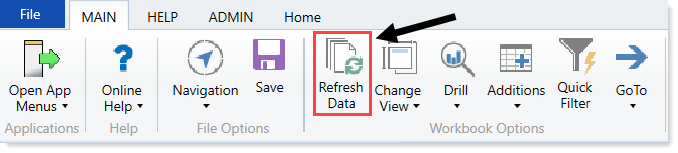
- Press F9.
- In the Refresh Variables dialog, click Choose Value.
- In the Choose Value dialog, select the check mark box next to one or more projects, and click OK.
- In the Refresh Variables dialog, click OK.
-
In the Process Flow Assignment Area, complete the following fields for each step owner, as needed:

NOTE: There may be different or additional rows, depending on how your system is set up.
Option Description Step Type the step number Step Name Type the step name.
IMPORTANT: This name should be the same name as set up in Process Management, with a matching column in your department table.
Individual Step Owner (if applicable) If only a single user will be assigned as the owner of the step for all capital projects, type the name. Project Type
Project Type Detail
Template
Class
Reason
Priority
Category
For each field, do the following:
- Double-click the field.
- In the Choose Value dialog, select the value.
- Click OK.
Is purchasing review required for pricing?
Is construction or renovation required?
Does this project include an IT component?
Is this request for medical equipment?
For each question, from the drop-down, select Yes or No. Cap Project Greater Than or Equal to $
Cap Project Less than $
Do one of the following:
- To filter projects, enter the filter criteria.
- To include all projects, leave the field blank.
In the Query Area, you can view testing results or how your projects are moving through workflow in the live environment.

- After making your changes, in the Main ribbon tab, click Save.
